Edit the time channel data
When browsing the representation of the time channel data flow, it is possible to carry out the following operations:
To edit time channels, click the  button, which will be available only if the user has the access rights to edit the object of the time channel. The dialog box is enhanced with the edit buttons after clicking the button.
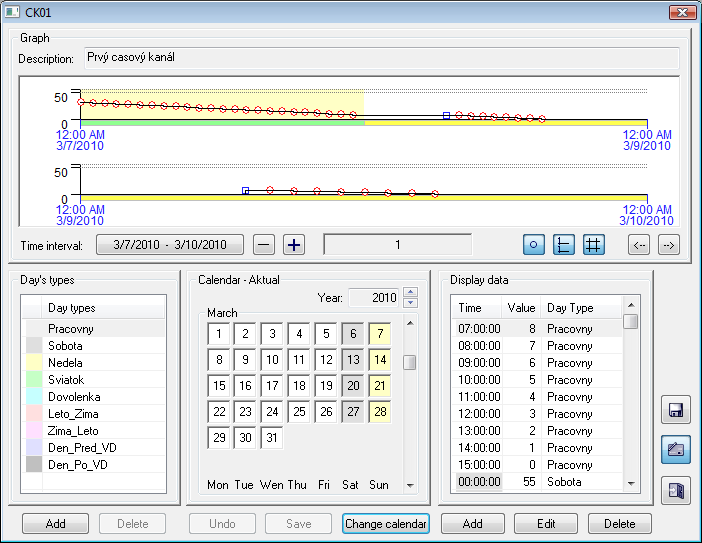
To add and delete day types
There are two buttons:
- Add - clicking the button opens the dialog box to enter the name of a new "Day type" object. The object is added to the list after entering.
- Delete - it deletes and discards the selected object from the list. If the button is not available, the selected object may not be deleted.
Edit displayed calendar
You can change the types of days in the displayed calendar as follows:
- Select the required day type in the list of day types.
- Click the day you want to edit.
There are two buttons:
- Undo - cancel all changes performed in the displayed calendar
- Save - save all changes to the configuration database
The buttons will be available only if you carry out any change in the edited calendar. The calendar may not be edited if the buttons are not displayed.
Change used calendar
Clicking the Change calendar button opens the dialog box containing a list of available calendars. You may choose a new calendar from the list.
Edit the time channel data
There are three buttons:
- Add - clicking the button opens the dialog box to add a new item of the time channel data. The object is added to the list after entering.
- Edit - edit selected data item of the time channel.
- Delete - delete the selected item of the time channel.
and the button to save changes to the time channel. The button will be displayed only if you edit any time channel item.
Clicking the button terminates editing. Checking the presence of any unsaved changes in the calendar and time channel is performed when you terminate editing. Detection of any changes opens the dialog box intended to save them.
Related pages:
Pridať komentár