Browsing values from the archive
The process D2000 HI allows you to browse values
from the archive in two ways:
- Browsing values of archived objects (object of Historical value type) directly in the process D2000 HI
- Export of values of archived objects (into a .TXT file, .CSV file, clipboard, printer)
 1. Browsing values of archived objects (object of Historical value type)
directly in the process D2000 HI
1. Browsing values of archived objects (object of Historical value type)
directly in the process D2000 HI
- Select the Archives item from the Open menu or
click
 button in the Main toolbar (or
press CTRL+H).
button in the Main toolbar (or
press CTRL+H).
- Selection window containing a list of defined archive objects is opened.
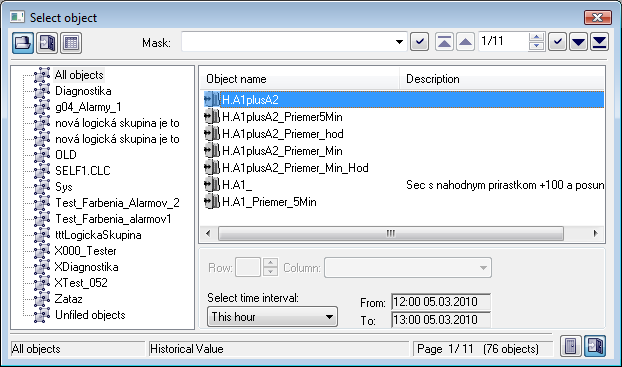
- Select an archive object from the list by mouse click on its name.
If the selected object is a structure containing more
rows and columns, define particular row and columns (the parameters Row
and Column).
Note: If the parameter Row=0, then
all columns of specified structure is to be exported.
- Select a time period (Select time interval item):
- This hour – shows values written into the
archive during current hour
- Last 2 hours – shows values written into the archive during last 2 hours
- Last 8 hours – shows values written into the archive during last 8 hours
- Last 12 hours – shows values written into the
archive during last 12 hours
- Last 24 hours – shows values written into the
archive during last 24 hours
- This day – – shows values written into the archive during current day
- Customize
- allows the user to define
own time interval
- Click on
 button to confirm
selected archive object (historical value) and time period.
button to confirm
selected archive object (historical value) and time period.
- Opened dialog box
shows values of the archive object within the defined time interval.
 2. Export of values of archived objects (into a .TXT file, .CSV file, clipboard, printer)
- In the selection window (the
picture above) select an archived object (or more
objects) and click the button
 - Export.
 - The following dialog box opens:
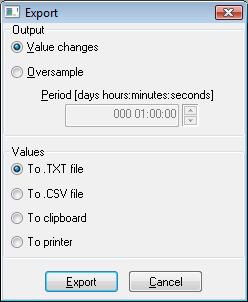
- In the dialog box, set required export parameters:
- Value changes - exports
value changes only.
- Oversample - exports
values according to the oversample setting (the parameter Period).
- To .TXT file - exports
values to a .TXT file. Clicking the button Export
opens a dialog box allowing to save the file.
- To .CSV file - exports
values to a .CSV file. Clicking the button Export
opens a dialog box allowing to save the file.
- To clipboard - exports
values to the clipboard.
- To printer -
prints values. Clicking the button Export
opens a dialog box containing the printer and page
parameters.
- Click the button Export.
Note: Values of one archived object may be also exported from the
dialog box for historical value
representation - the button Export.
Buttons placed on the bottom right corner determine the behavior of the
selection window after selecting an object:
 |
Unclose the selection window. |
 |
Close the selection window. |