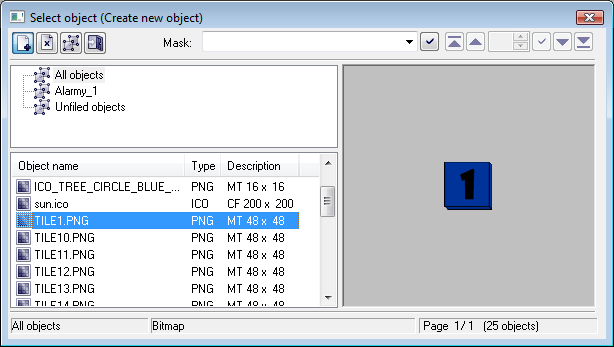
Bitmaps and JPEG, TIFF, PNG files might be added, deleted or assigned to the logical groups. To carry out these activities, select the item Bitmaps... from the menu Configuration Gr. Clicking the item opens the following selection window.
 | Adds a new bitmaps. |
 | Deletes selected bitmaps. |
 | Assigns selected objects to logical groups. |
 | Closes the selection window. |
If you want to add a new bitmap, proceed as follows:
- Add bitmaps.Alternatively, you can drag&drop bitmap files from File Explorer to the bitmap configuration window.
If you want to delete bitmaps, proceed as follows:
- Delete bitmaps.If selected bitmaps are not used in any picture, the system removes them. If selected bitmap is used in the system, the system does not delete the bitmap and displays the warning message.
If you want the bitmaps to assign to / remove from the logical groups, proceed as follows:
- assign to logical groups.It opens the dialog box allowing to carry out required operation.