D2000 Components serve for fast and effective creation of visualization, basic overview of a status, values, process, devices, measurements, regulation, process status and provide basic pointers for a user/operator.
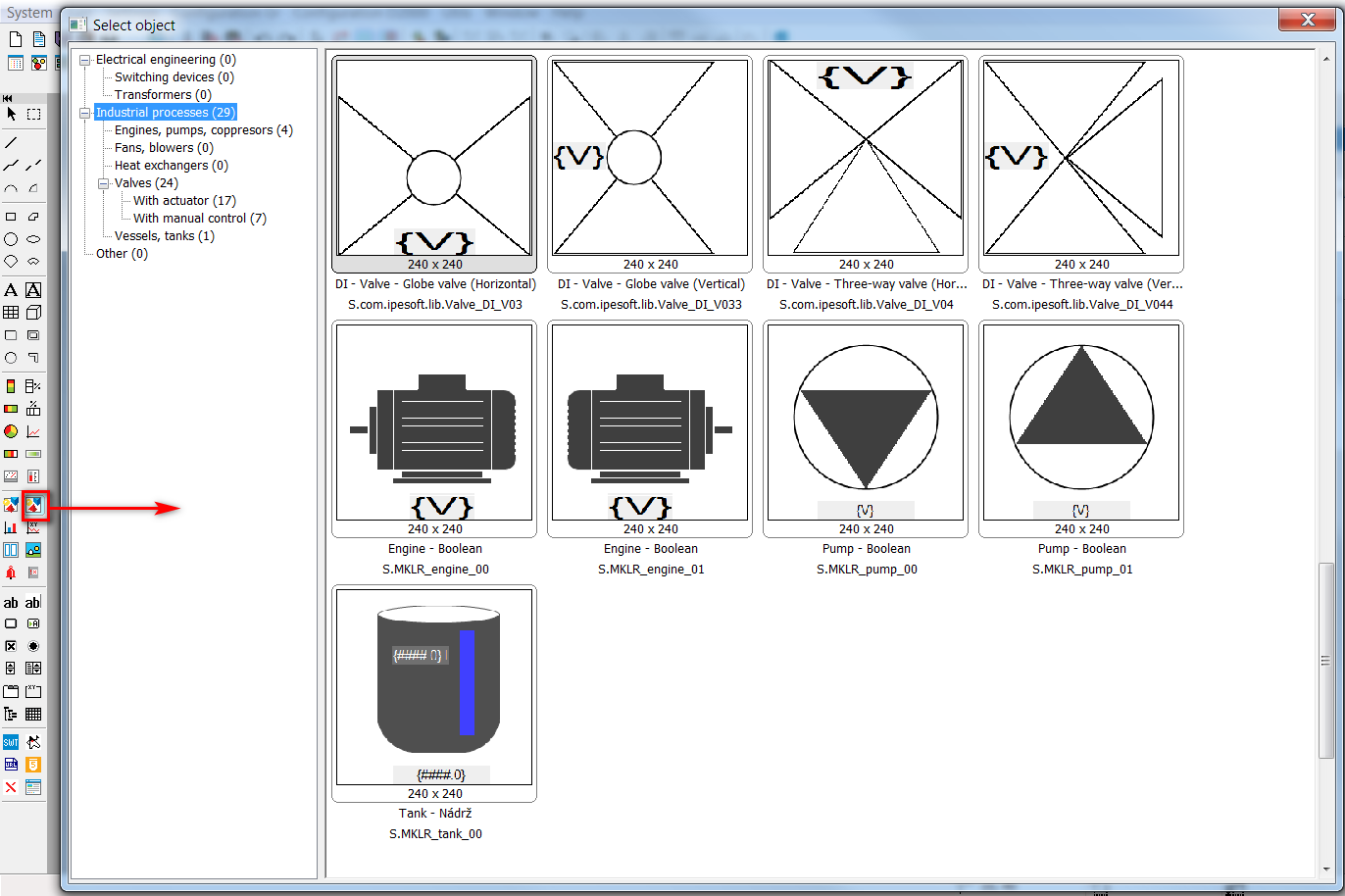
Selection of the component object and insertion into the scheme
Figure 1 – Selection of the component object
Use of components in the scheme and parameterization
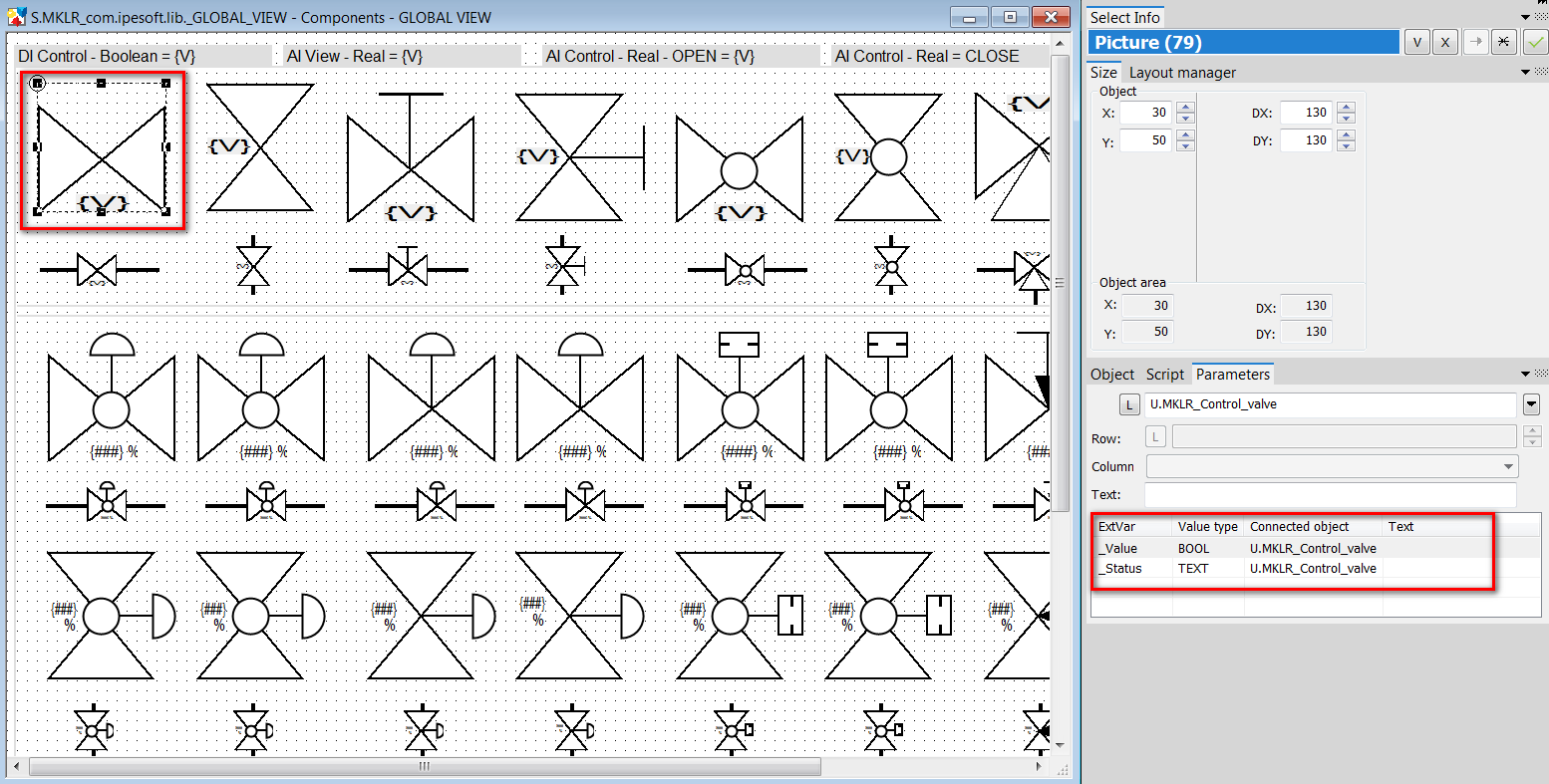
Figure 2 – Use of components in the scheme – Parameters ExtVar
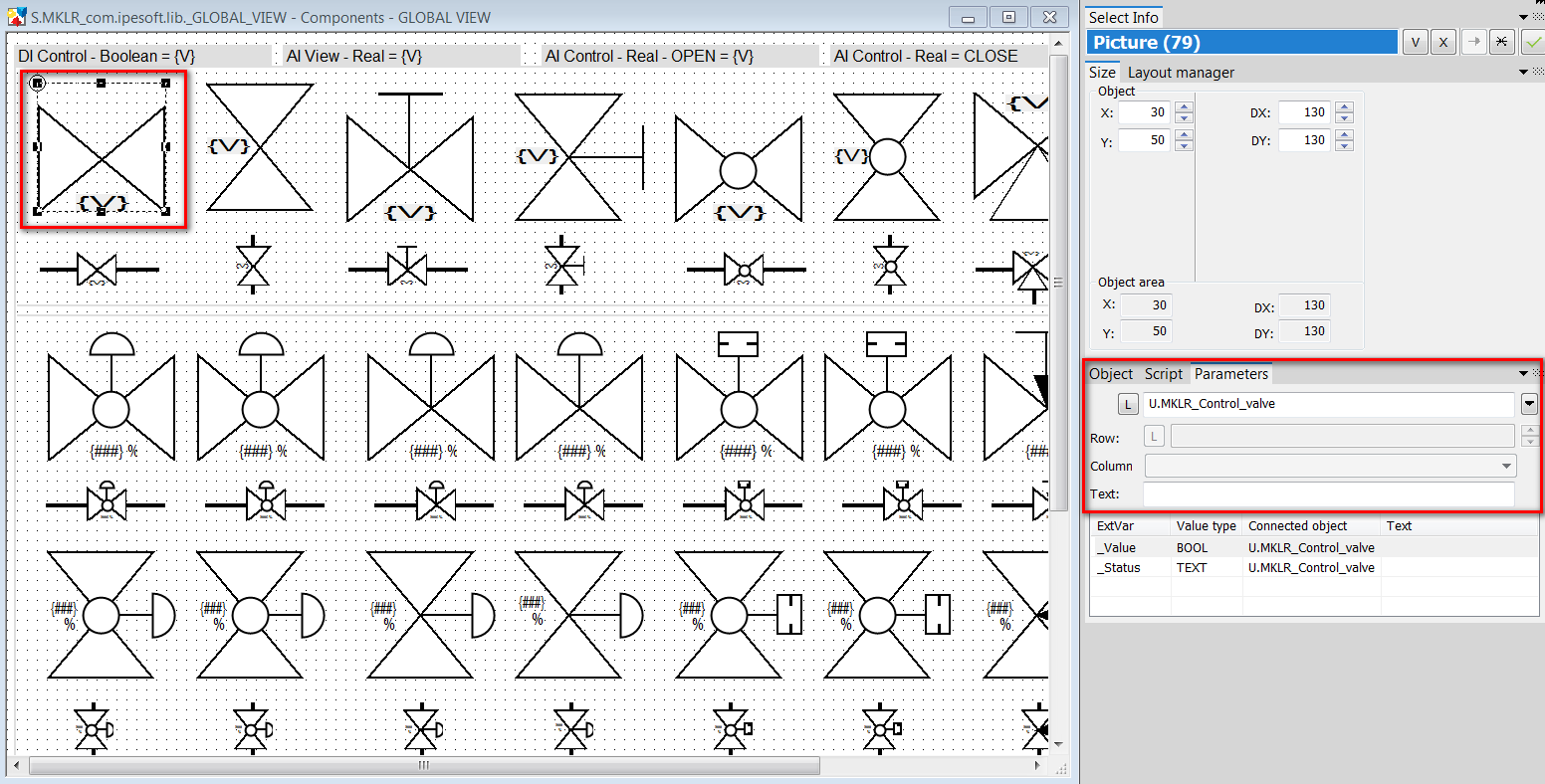
Figure 3 – Use of components in the scheme – Parameters ExtVar
Parameterization of local variables of the “EXTERNAL” type
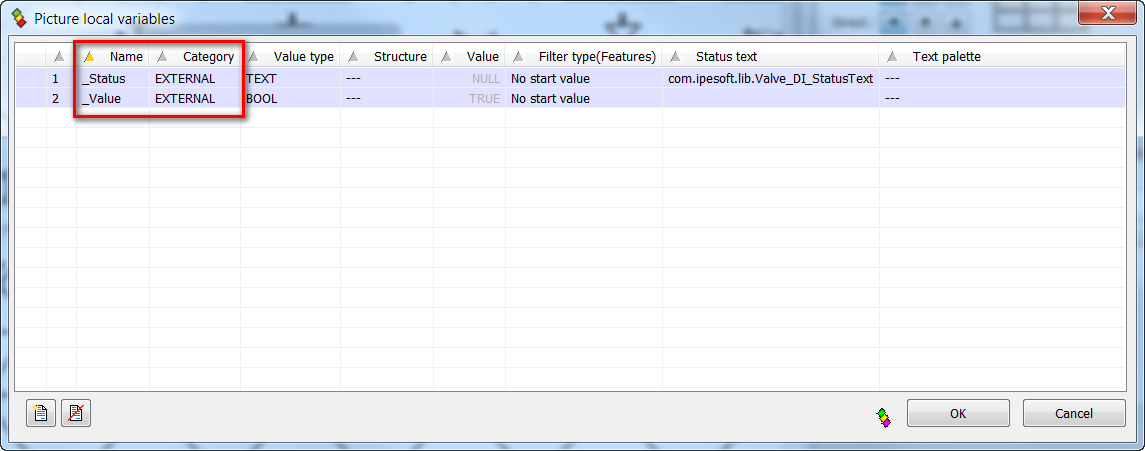
Figure 4 – Definitions of local variables of the EXTERNAL type
After inserting component scheme into parenting scheme, it is possible to bind external variables of the component to variables of the parenting scheme or to D2000 objects.
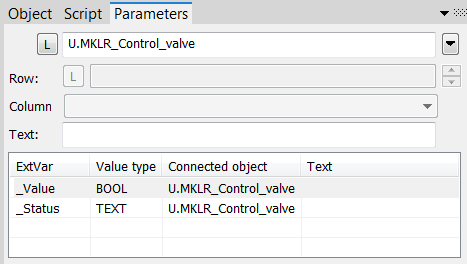
Figure 5 – Binding of external variables of the component
Categorization of components
In scheme parameters, it is possible to edit component groups and put the scheme into a component group.
It is possible to create component groups, to rename and delete them by selecting an item from the context menu, which is opened by a right-click.
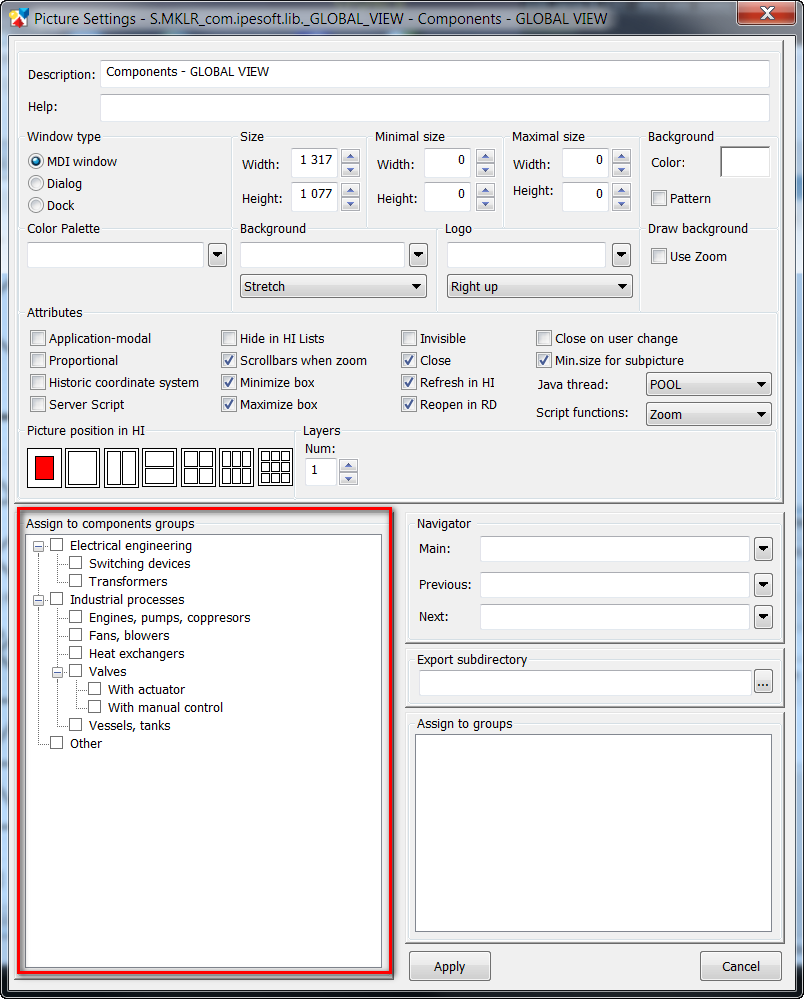
Figure 6 – Categorization of components
It is possible to move component schemes, same as other D2000 objects, among applications using D2000 XML export/import.
We recommend to choose such name convention for components as to prevent conflicts of names with potential existing schemes and other objects. Components supplied by the IPESOFT company have the prefix com.ipesoft.lib in their name.
– S.com.ipesoft.lib.Valve
– com.ipesoft.lib.Valve_Coloring.PAL
– com.ipesoft.lib.Valve_StatusText
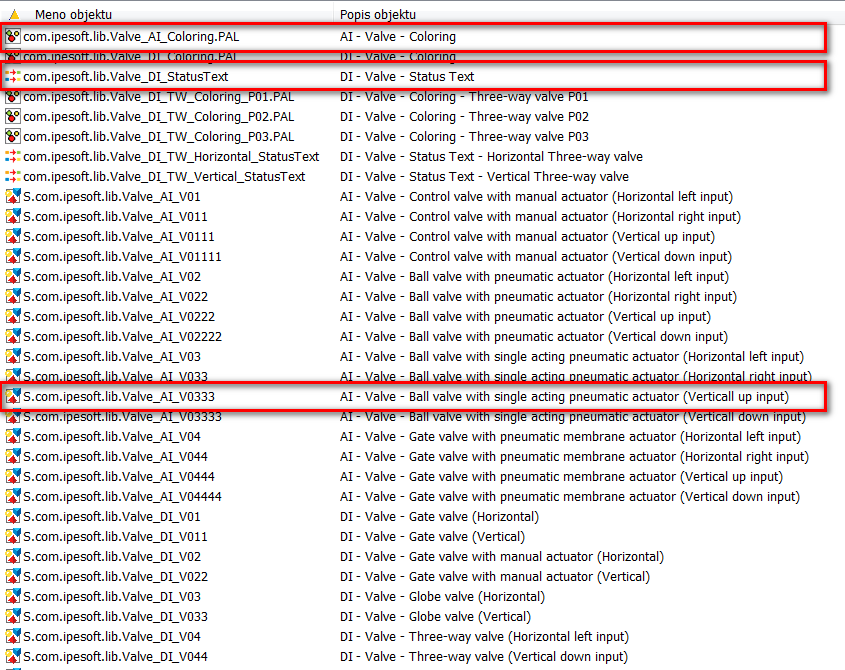
Figure 7 – A prefix of components' names
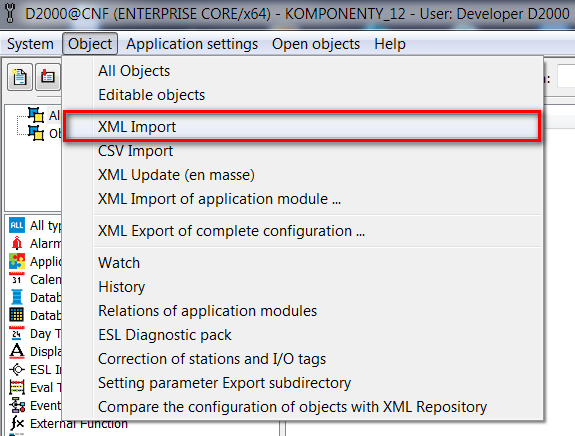
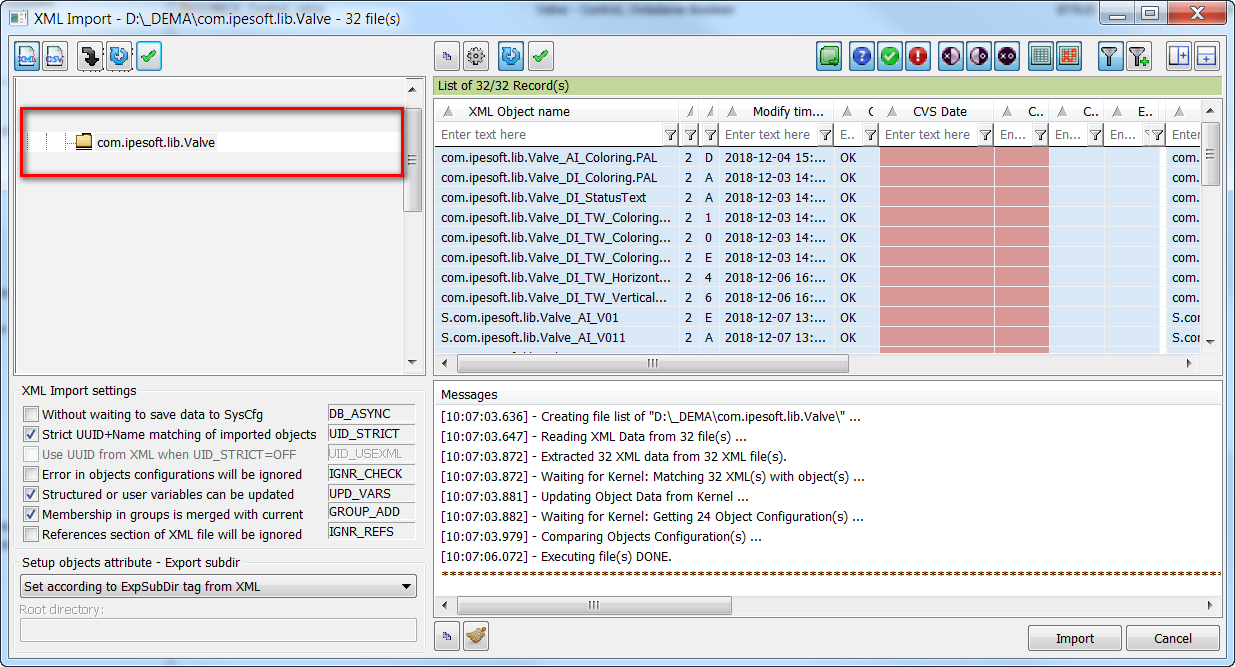
Figure 8 – (CNF) XML Import of components
Process of a component import supplied by the IPESOFT company
- unzip a package in the form of a zip file (com.ipesoft.lib.Valves.zip) into prepared directory
- choose an item XML Import in the CNF process in the objects menu (see Figure 8 – (CNF) XML Import of components)
- choose a directory where we have unzipped the component package in the directory structure
- execute Import
after a successful import, imported components will display in the process of graphic editor in the corresponding category (see Figure 1 – Selection of the component object)