From version D2000 V7.01, release A061114038, the D2000 System allows the user to switch pictures to so-called History mode. The mode gives the user the possibility to view the values of subpictures and graphs inserted in the picture as they were within a specified historical time interval.
There is only one condition for the picture to switch it to the History mode:
- The picture must contain a graphic object with the %History or %History2 function defined in its configuration (the configuration is performed in D2000 GrEditor).
Switching the picture to the History mode is performed by clicking on that graphic object. It opens the following dialog box, which is used to set a time interval to view the picture history (note: the interval can also be changed later).
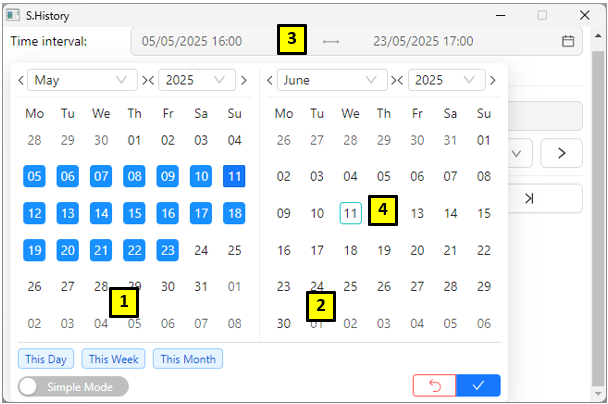
If the function %History2 is defined for a graphic object in a picture, the dialog box allows you to choose only the start time of the interval (1), and the archived values from the range of one hour from the beginning of this interval will be displayed.
You can start, control, and close the history of a picture also from a picture script. Starting the history mode from the script does not allow you to open the control dialog window, but if it has already been opened from the picture, it remains open and contains the parameters from the script.
To set a time interval
- In the calendar (1), select the required month and year of the time interval beginning (click the items showing year and month). The framed item (4) indicates the current date.
- In the calendar (2), select the required month and year of the time interval end.
- In the calendar (1), click on a day - the time interval beginning and hold down the mouse button, then click on a day - the time interval end and release the mouse button. If the time interval is within one month, just mark the days on the calendar (1).
- Time interval may also be defined in the input fields showing required time parameters (3).
- To confirm your settings, click the button OK.
Clicking the button OK will open the following dialog box used to move within the history time:

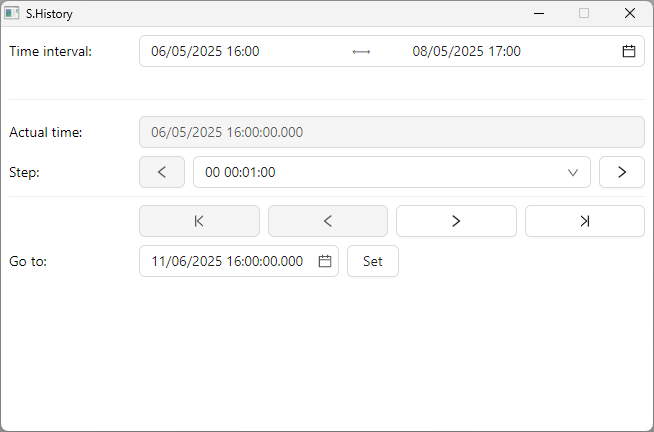
The dialog box can be divided into the following parts:
Time interval
Historical time interval (From and To parameters). The interval can be changed by clicking the Change button.
Current Time
Shows the time displayed in history playback mode.
Control
It includes the following parts:
- Current time - the current time of history, in which the picture is
- Step - time step in history

 - Move back / forward in history by a time step defined by the Step parameter
- Control - control buttons for moving in the history:
 - goes to the beginning/end of the selected interval (see the From and To items)
 - previous/next value in picture history
- Go to - jump to the time specified in the input entry field left of the Set button
- Close - closes the dialog box and cancels the History mode
Note: If the begin time is the same as the end time, all the control buttons except Close are disabled.
Some of the control buttons are also disabled if the history mode is restarted from a script, while the control dialog window is opened, and the start parameters set a fixed step /=0. More specifically, the buttons Step, Go to, and Previous/Next value are disabled.
Features of pictures in the History mode
- The picture script (if it exists) is informed that the History mode is enabled through the OnHistoryTime picture event.
- The values of objects in the picture are invalidated immediately after the History mode is activated, and they are restored after the mode is canceled.
- Controlling objects is not allowed (except for object info).
- Script can alter values of local variables in a scheme (e.g., index change of a structured variable will not require new archive data).
- As the values of picture local variables are not archived in D2000 systems at all, the mode can not show them in the given history time (Note: the picture script can set the values if it knows them).
- The history time for a subpicture (that already is in the History mode and is placed in a picture) is automatically set to the history time of its parent (i.e., the picture) after the mode is enabled for the parent picture.
- Text variables in the history of pictures keep their value as it was before the picture’s opening (text variables cannot be archived, and they do not have a history. This does not concern the local text variables (they contain the value from the script).