Drag&Drop enables moving a content by mouse button between the graphic objects. From a user point of view, in the source graphic object, just grab any element by pressing the left-mouse button and drag it to the other (possibly to same) graphic object.
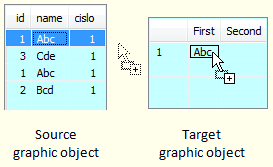
Drag&drop functionality
...
Drag&Drop feature consists of two related operations:
- Drag – the particular element is grabbed by left-mouse button and dragged on other position. The operation is finished when a user aborts it, for example by pressing ESC button, or when drop operation starts.
- Drop – it is done when user releases the left-mouse button on the particular position. If the graphic object does not support Drag&Drop or cannot process the moving element, the operation is not executed. If this operation is permitted, a mouse cursor changes.
...
Source graphic object – it allows to grab some of its elements and move it to other position. This graphic object is considered as a source of data that provides to other graphic objects.Kotva zdrojovy_go zdrojovy_go
Target graphic object – target object is able to receive data that are moved through the functionality Drag&Drop. Target object can decide whether it receives data or not and how they will be processed.Kotva cielovy_go cielovy_go
...
Drop operation supports following type of data transfer:
- Copying – data are copied to the target object and they remain in the source object. It is an implicit operation within Drag&Drop.
- Moving – data are copied to the target and deleted from the source object. You must use Shift key when dragging.
- Creating a link – in the target object, a link to transferred data from the source object is created. You must use Alt key when dragging. This type of transfer is mostly used when moving the files.
...
- Graphic objects:
- Data formats:
- Text
- List of files
- Format that is specific for D2000 System – (Data container)
...
On the figure below, there is a graphical display of events generated when Drag&Drop.
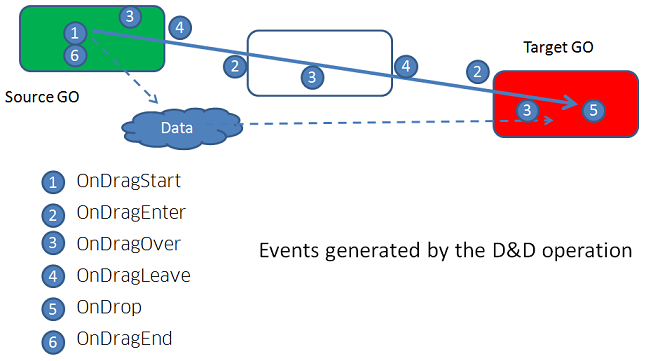
Related picture events:
Related functions: